Shuttle
The first screen you see when you tap the Shuttle tab at the bottom of the app. It brings together weather and shuttle bus information, along with other frequently checked information, into a single view.
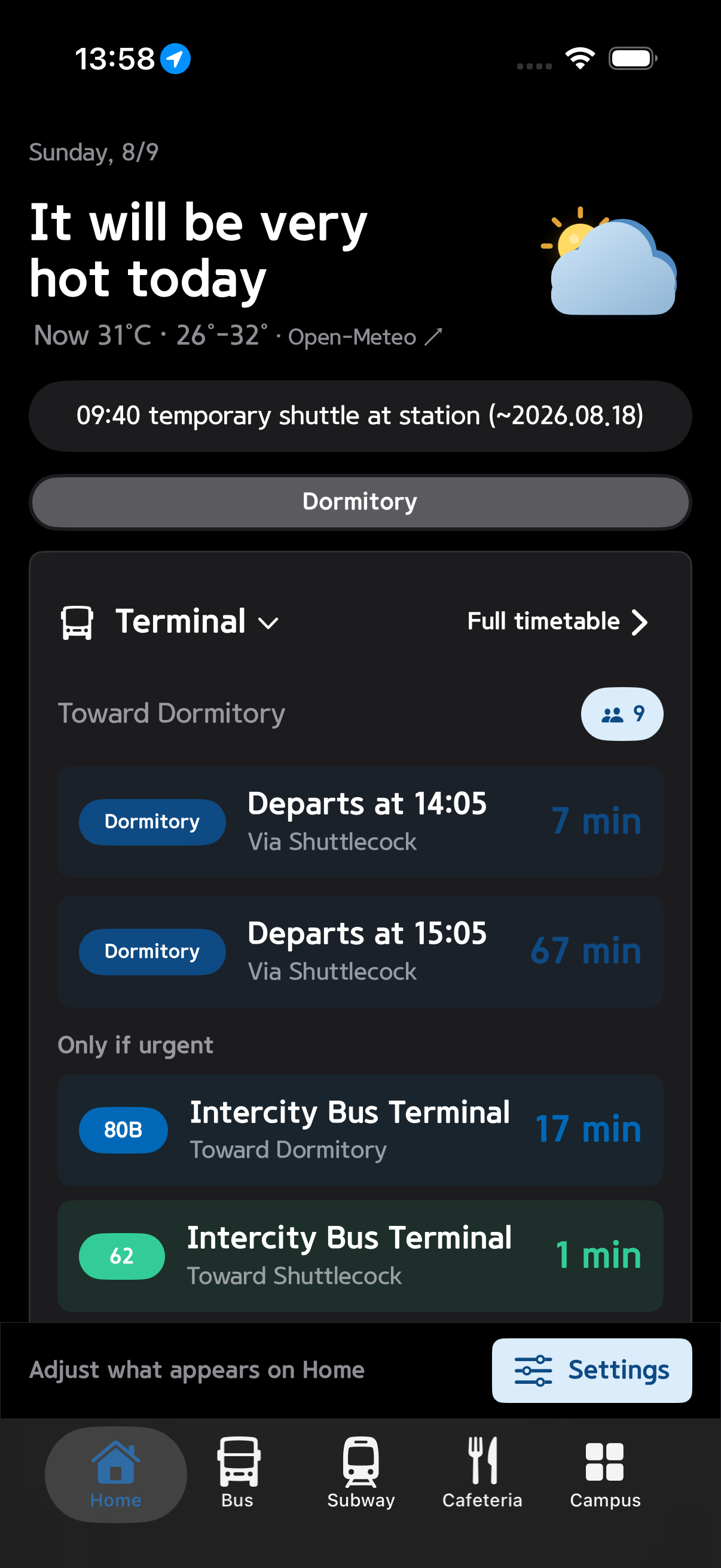
Home View
- Weather: Displays the current temperature and condition at the top of the screen.
- Shuttle Bus Departure Info: Shows the next departure time and remaining time based on your selected departure stop and destination, along with connecting bus and subway transfer info.
- Cafeteria Preview: View today's on-campus dining hall menu at a glance.
Shuttle Bus Real-time Screen
You can also switch to a stop-tab style real-time timetable screen (equivalent to the "Classic Shuttle Screen" on Android).
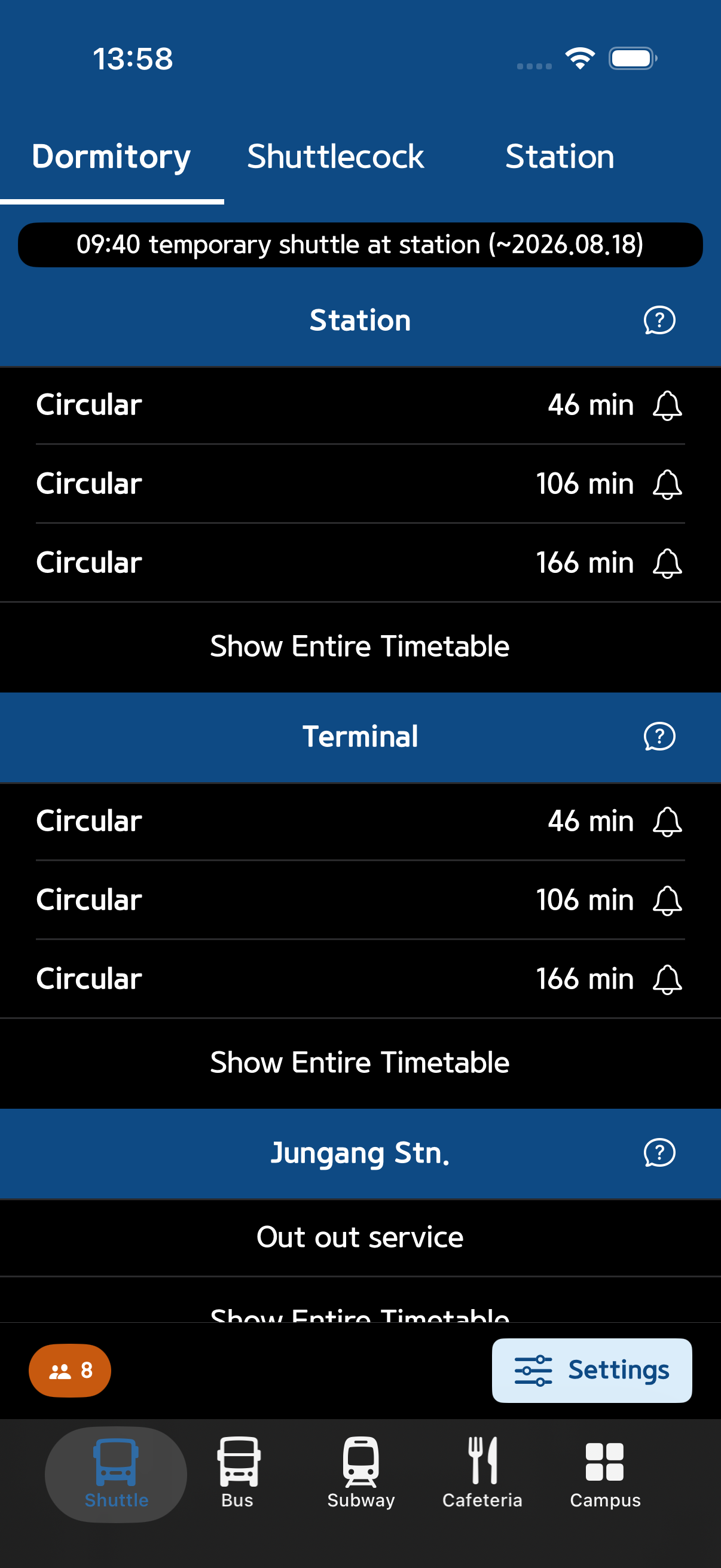
- View the next departure time by stop and destination
- Set an alarm to receive a notification at a specific time
- Check route stopping information
- Adjust frequently used options via Quick Settings
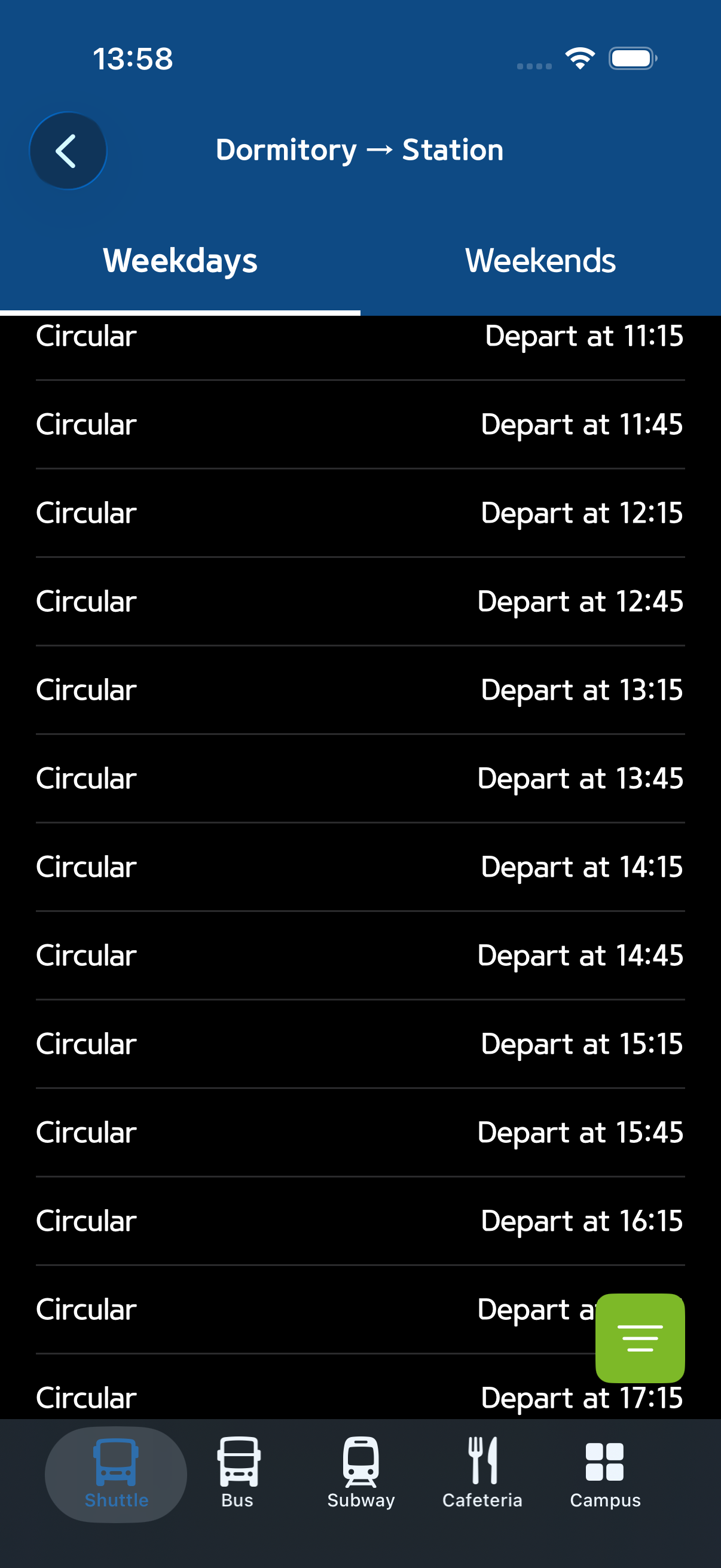
- Navigate to Full Timetable to view the complete daily departure schedule
info
As with Android, you can switch which screen is shown by default (Home View / Shuttle Bus Real-time) in Settings.