Home
The first screen you see when you open the app. It brings together the information you check most often into a single view.
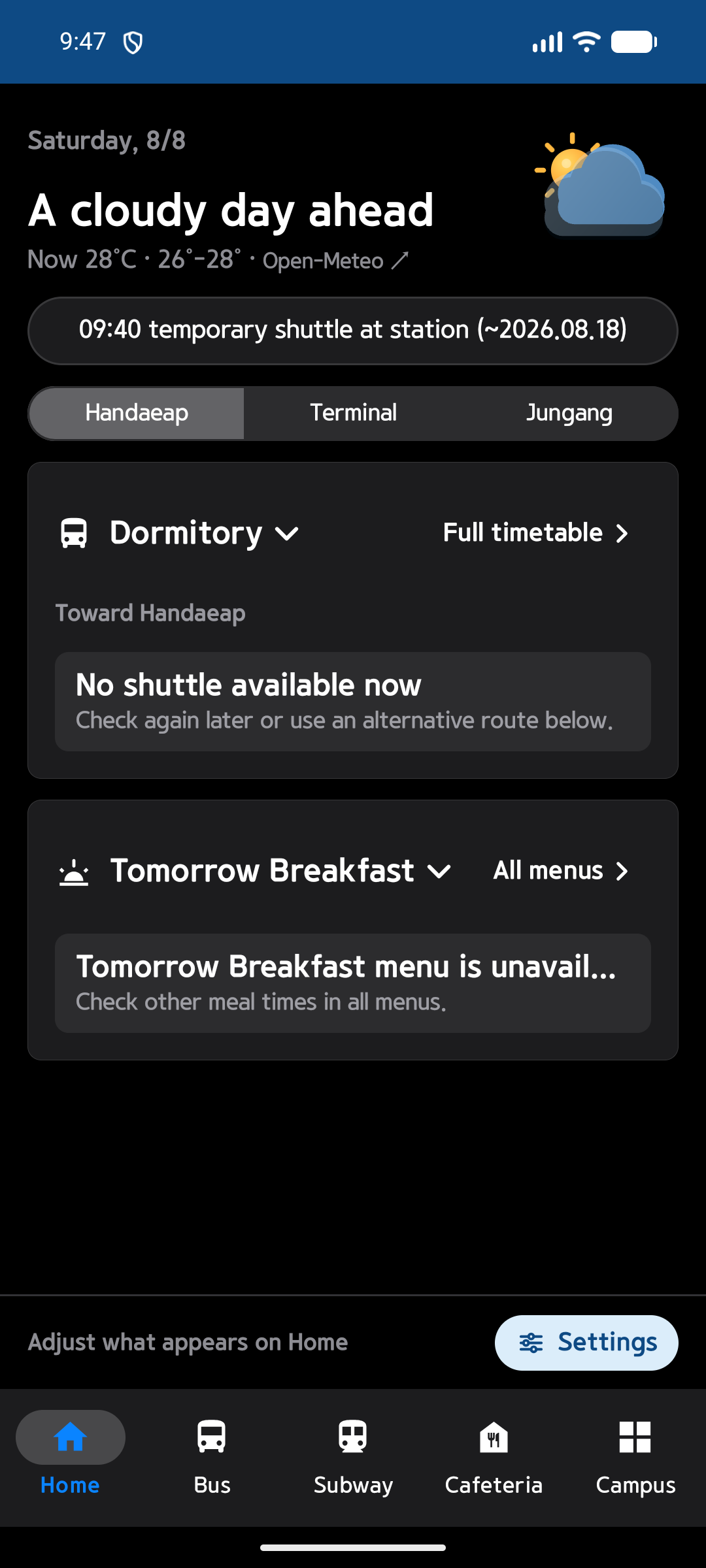
Key Information
- Weather: Displays the current temperature and condition (sunny, cloudy, rainy, snowy, etc.) at the top of the screen with text and an icon.
- Shuttle Bus Departure Info: Select a departure stop (Dormitory / Hanyang University (Ansan) / Arts Center / Jungang Station, etc.) to see the next departure time and remaining time on a card, along with connecting subway and bus transfer info shown just below.
- Full Timetable: Tap Full Timetable at the top of the shuttle card to navigate to the complete departure schedule for that route. See the Shuttle Bus guide for details.
- Cafeteria Menu Preview: Tap the menu card to instantly view today's cafeteria menu by breakfast / lunch / dinner.
Departure Stop Selection Popup
Tapping the stop name on the shuttle card (e.g., "Hanyang University (Ansan)") opens a popup menu where you can choose your departure stop.
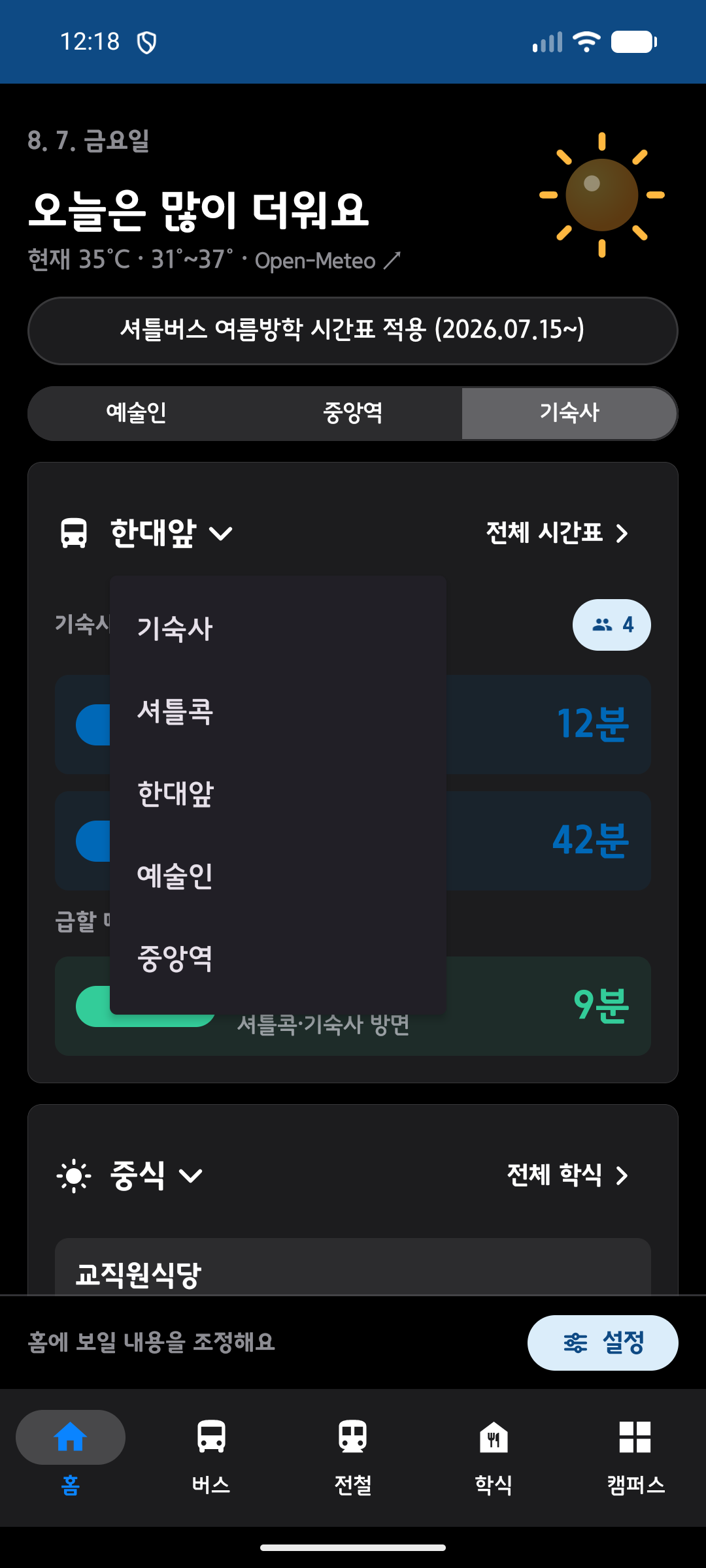
You can choose from Dormitory, Shuttle Kok, Hanyang University (Ansan), Arts Center, and Jungang Station. If location permission is granted, the stop is normally selected automatically via GPS, and this menu lets you override it manually.
Quick Settings
Tapping the Home Settings button at the bottom of the screen opens a sheet with the following options.
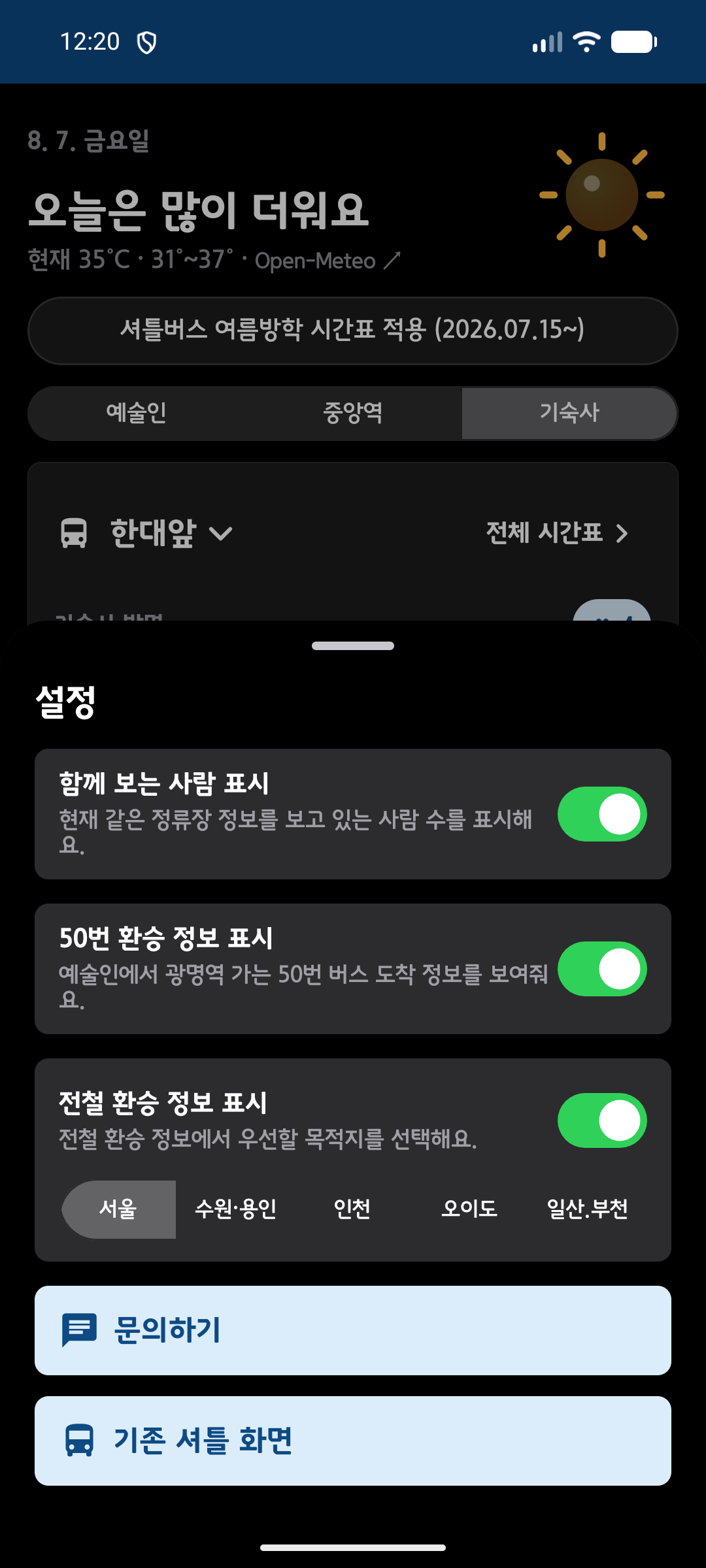
- Show number of people viewing: Toggle whether to display how many people are currently viewing the same stop (student activity count).
- Show Bus 50 transfer info: Toggle whether to display Bus 50 arrival info for the Arts Center → Gwangmyeong Station route.
- Show subway transfer info: Toggle display and select your preferred transfer destination from Seoul, Suwon, Yongin, Incheon, Oido, Ilsan, and Bucheon.
- Contact Us: Navigate to the in-app chat screen to send inquiries.
- Classic Shuttle Screen: Switch to the previous stop-tab style shuttle screen. See the "Classic Shuttle Screen" section in the Shuttle Bus guide for details.
tip
If your regular route has changed, just update the destination in Quick Settings — no need to go into the full app settings.